> ## Documentation Index
> Fetch the complete documentation index at: https://docs.telemetron.ai/llms.txt
> Use this file to discover all available pages before exploring further.
# Categories & Routing Rules
> Organize cases, customers, and devices with categories and auto-route cases to the right team member
Open Categories Settings →
 ## Categories
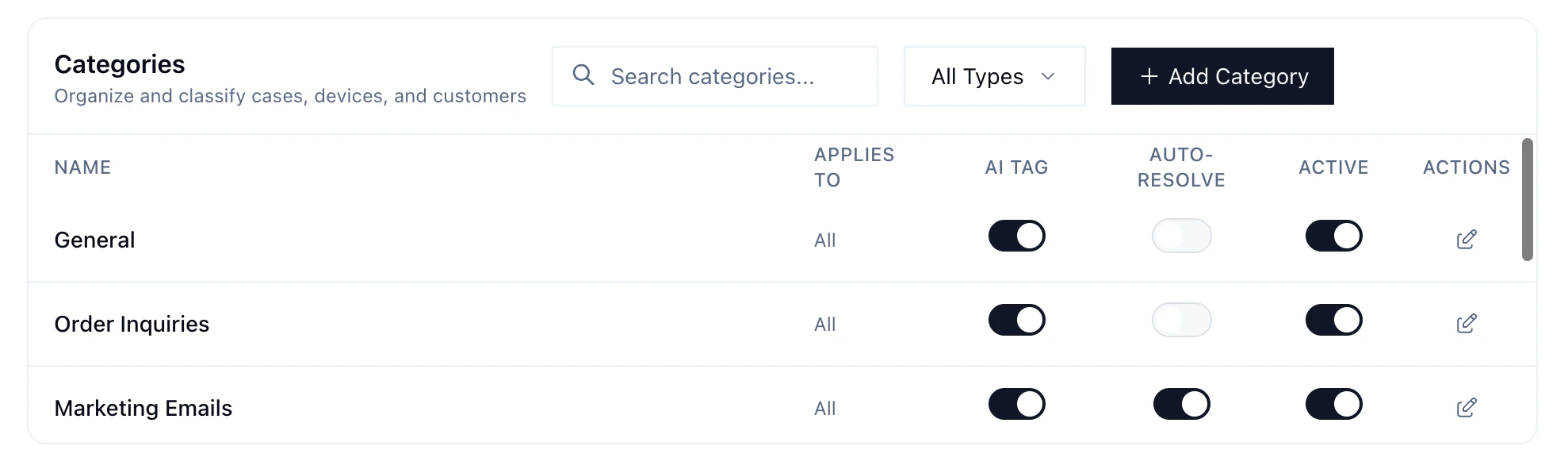
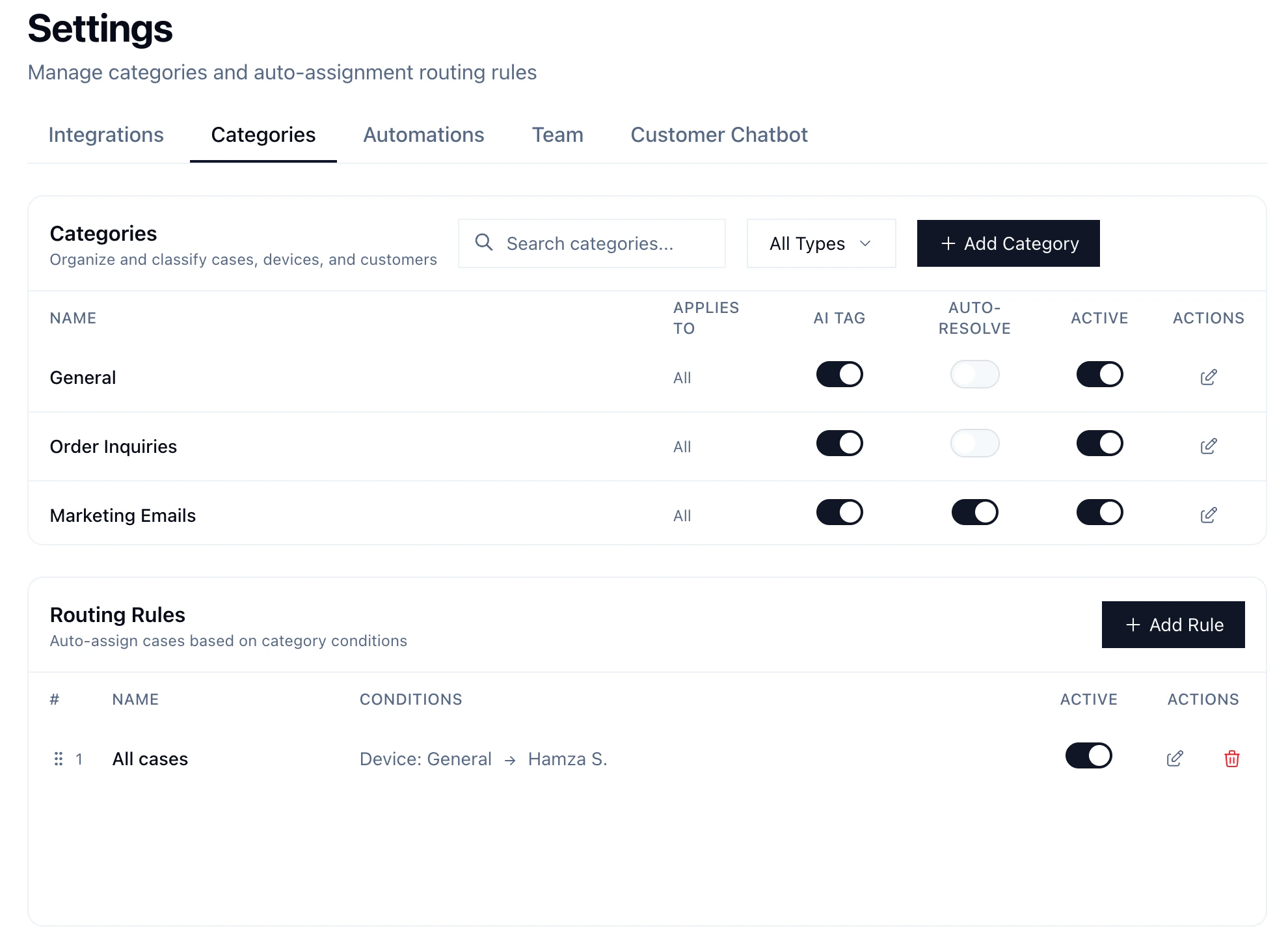
Labels for organizing cases, customers, and devices. Categories apply across all three entity types, and routing rules can combine them for smart assignment.
### Entity Types
| Entity | Where assigned | Examples | Why |
| ------------ | --------------------------------- | ---------------------- | ----------------------------------------- |
| **Case** | Case detail panel (or auto by AI) | "Bug Report", "Spam" | Triage, auto-resolve, routing |
| **Customer** | Customer detail page | "Enterprise", "SMB" | Tag once — all future cases route by tier |
| **Device** | Device detail page | "Production", "Legacy" | Route by hardware type |
Categories can be scoped to specific entity types or left unrestricted to apply to all three.
### Settings
* **AI enabled** — AI auto-classifies incoming cases into this category
* **Auto-resolve** — cases in this category are immediately resolved and skip Slack notifications. Requires AI enabled.
* **Active** — whether the category is currently in use. Inactive categories won't be assigned to new cases.
## Routing Rules
Auto-assign cases to a team member based on category conditions.
Each rule matches on up to three conditions (AND logic — all must match):
| Condition | What it checks |
| --------------------- | ------------------------------------- |
| **Case category** | The case has this category |
| **Customer category** | The case's customer has this category |
| **Device category** | The case's device has this category |
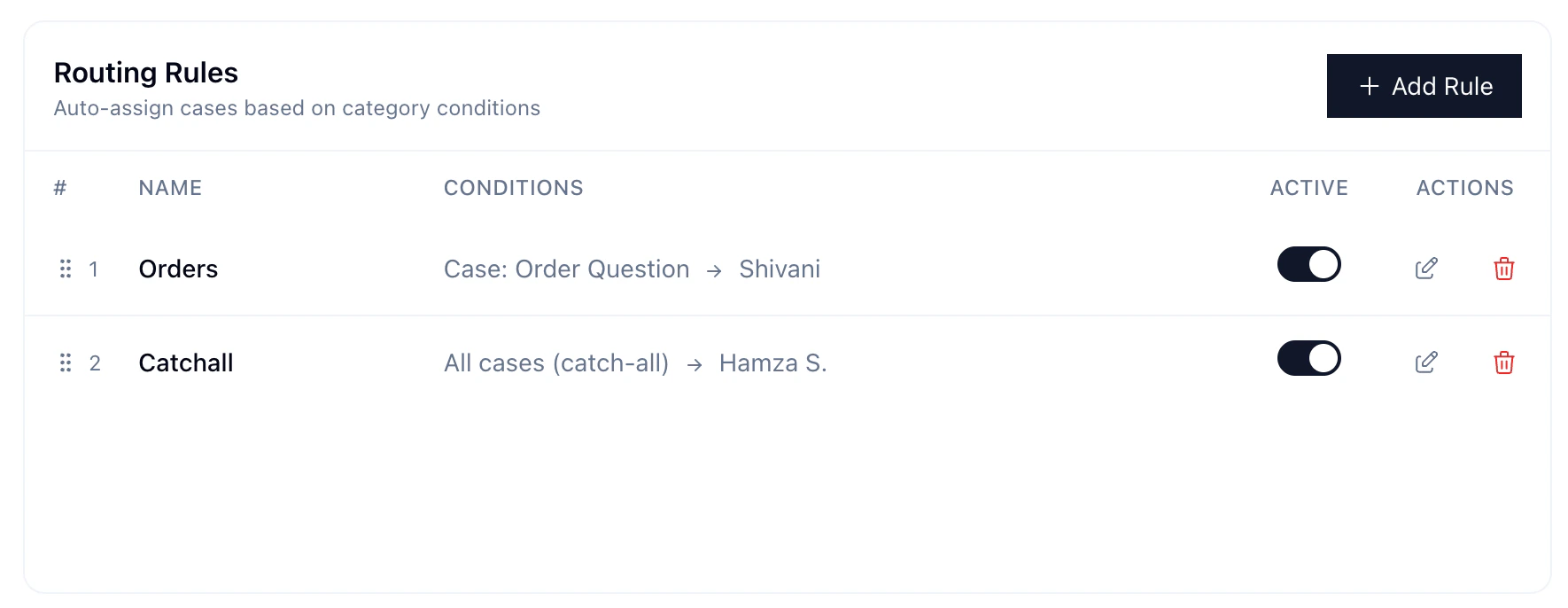
Rules evaluate top to bottom — **first match wins**. Drag to reorder. For example, all order-related inquiries go to Shivani, and the rest go to Hamza:
## Categories
Labels for organizing cases, customers, and devices. Categories apply across all three entity types, and routing rules can combine them for smart assignment.
### Entity Types
| Entity | Where assigned | Examples | Why |
| ------------ | --------------------------------- | ---------------------- | ----------------------------------------- |
| **Case** | Case detail panel (or auto by AI) | "Bug Report", "Spam" | Triage, auto-resolve, routing |
| **Customer** | Customer detail page | "Enterprise", "SMB" | Tag once — all future cases route by tier |
| **Device** | Device detail page | "Production", "Legacy" | Route by hardware type |
Categories can be scoped to specific entity types or left unrestricted to apply to all three.
### Settings
* **AI enabled** — AI auto-classifies incoming cases into this category
* **Auto-resolve** — cases in this category are immediately resolved and skip Slack notifications. Requires AI enabled.
* **Active** — whether the category is currently in use. Inactive categories won't be assigned to new cases.
## Routing Rules
Auto-assign cases to a team member based on category conditions.
Each rule matches on up to three conditions (AND logic — all must match):
| Condition | What it checks |
| --------------------- | ------------------------------------- |
| **Case category** | The case has this category |
| **Customer category** | The case's customer has this category |
| **Device category** | The case's device has this category |
Rules evaluate top to bottom — **first match wins**. Drag to reorder. For example, all order-related inquiries go to Shivani, and the rest go to Hamza:
 ### Flow
1. AI categorizes the case
2. Auto-resolve fires if the category has it enabled
3. Routing rules evaluate in priority order
4. First match assigns the case
Manually assigned cases are not overridden.
The dashboard warns when a broad rule shadows a more specific one. Reorder so specific rules have higher priority.
## Handling Spam / Irrelevant Messages
Create a category (e.g., "Marketing"), enable **AI enabled** and **Auto-resolve**. Matching cases are immediately closed and won't notify your team.
### Flow
1. AI categorizes the case
2. Auto-resolve fires if the category has it enabled
3. Routing rules evaluate in priority order
4. First match assigns the case
Manually assigned cases are not overridden.
The dashboard warns when a broad rule shadows a more specific one. Reorder so specific rules have higher priority.
## Handling Spam / Irrelevant Messages
Create a category (e.g., "Marketing"), enable **AI enabled** and **Auto-resolve**. Matching cases are immediately closed and won't notify your team.