> ## Documentation Index
> Fetch the complete documentation index at: https://docs.telemetron.ai/llms.txt
> Use this file to discover all available pages before exploring further.
# How Cases Work
> Understand the case lifecycle, creation sources, statuses, and assignment
Open Cases in Dashboard →
Every customer interaction in Telemetron is tracked as a **case**. Each case has a **channel** it came from, a **status** tracking where it is in the lifecycle, an **assignment** to a team member, and a **category** for organization and filtering.
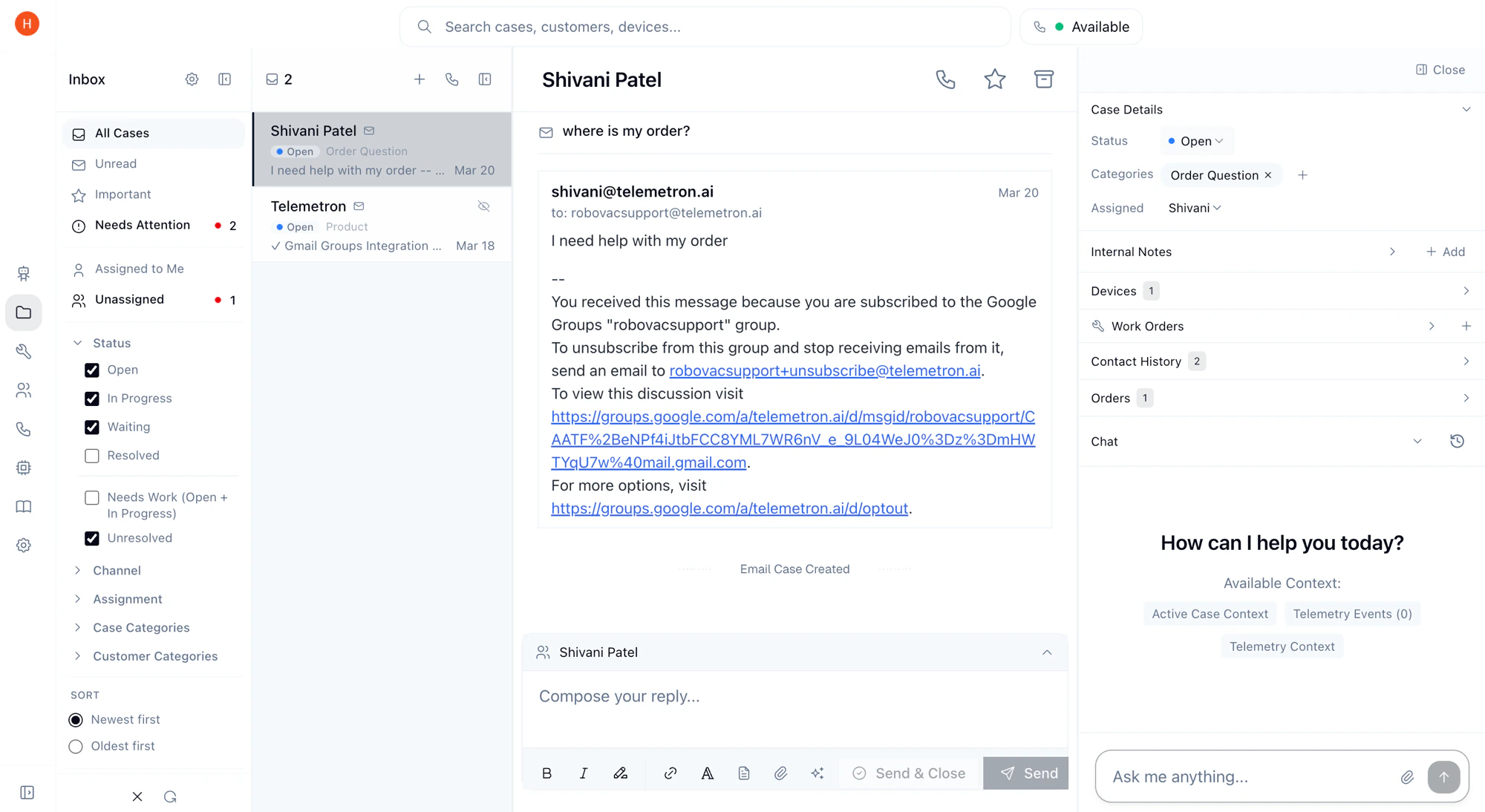 ## Statuses
Where a case is in its lifecycle.
| Status | Description |
| ------------------------ | ---------------------------------------- |
| **Open** | New, not yet being worked on |
| **In Progress** | Actively being handled by an agent or AI |
| **Waiting for Customer** | Response sent, awaiting reply |
| **Resolved** | Issue addressed, case closed |
## Statuses
Where a case is in its lifecycle.
| Status | Description |
| ------------------------ | ---------------------------------------- |
| **Open** | New, not yet being worked on |
| **In Progress** | Actively being handled by an agent or AI |
| **Waiting for Customer** | Response sent, awaiting reply |
| **Resolved** | Issue addressed, case closed |
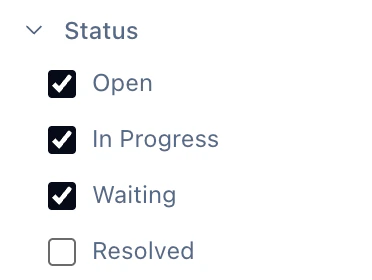
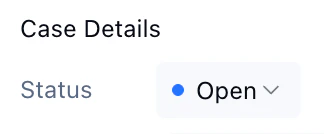 By default, the inbox shows Open, In Progress, and Waiting cases. Status can be manually changed from the case details panel.
Resolved cases can be **archived** to keep your active list clean.
## Channels
Where cases come from. Each channel automatically creates and routes cases.
| Source | How It Works |
| ------------------ | -------------------------------------------------------- |
| **Email** | Incoming emails create new cases or reopen existing ones |
| **Instagram** | DMs and post comments create cases with the full thread |
| **Facebook** | Messenger and page comments create and update cases |
| **Phone** | Inbound and outbound calls create cases with recordings |
| **Chatbot Widget** | Widget interactions create cases on escalation |
| **Partner** | Cases created by partner users (enterprise only) |
| **Manual** | Created by team members from the dashboard |
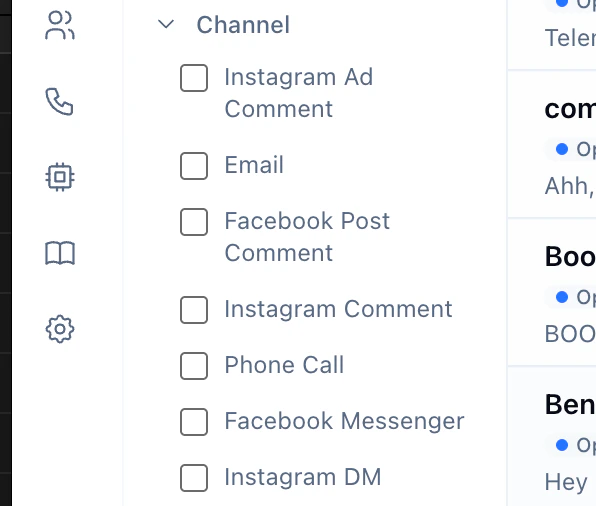
You can filter cases by channel in the inbox sidebar.
By default, the inbox shows Open, In Progress, and Waiting cases. Status can be manually changed from the case details panel.
Resolved cases can be **archived** to keep your active list clean.
## Channels
Where cases come from. Each channel automatically creates and routes cases.
| Source | How It Works |
| ------------------ | -------------------------------------------------------- |
| **Email** | Incoming emails create new cases or reopen existing ones |
| **Instagram** | DMs and post comments create cases with the full thread |
| **Facebook** | Messenger and page comments create and update cases |
| **Phone** | Inbound and outbound calls create cases with recordings |
| **Chatbot Widget** | Widget interactions create cases on escalation |
| **Partner** | Cases created by partner users (enterprise only) |
| **Manual** | Created by team members from the dashboard |
You can filter cases by channel in the inbox sidebar.
 ## Assignment
Which team member owns a case. Cases can be assigned manually from the dashboard or routed automatically based on [routing rules](/data/categories-and-routing#routing-rules).
## Categories
Labels for organizing and filtering cases. Categories are configured per-organization and can be assigned manually or by the AI agent. See [Categories & Routing Rules](/data/categories-and-routing) for details.
## Notifications
How your team stays informed.
New cases and updates notify your team via [Slack](/integrations/communication/slack) — no need to watch the dashboard. Notifications fire on new cases, customer replies, and status changes.
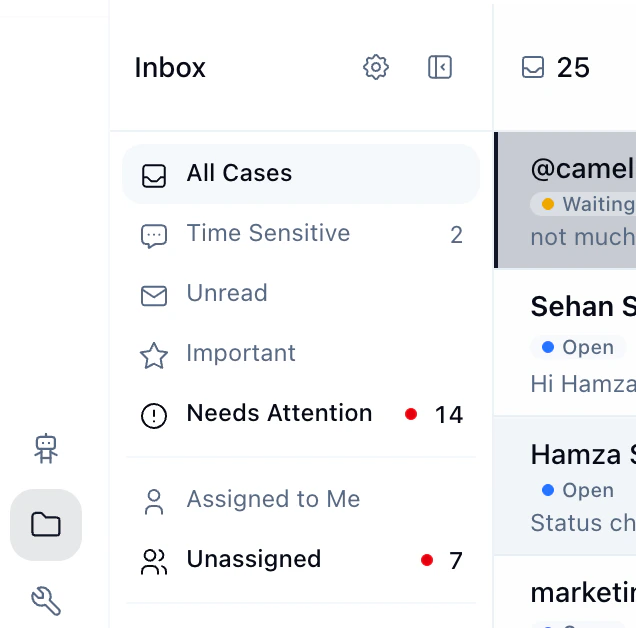
## Inbox Quick Filters
The inbox sidebar provides quick filters to surface the cases that need your attention.
| Filter | What it shows |
| ------------------- | --------------------------------------------------------------------------------------------------------------------------------------------------------------------------------------- |
| **All Cases** | All cases matching your current status, category, and channel filters |
| **Time Sensitive** | Cases with an enforced short response window (e.g., 24-hour messaging limits). Only appears when you have channels with time-sensitive windows connected (like Instagram or Messenger). |
| **Unread** | Cases you haven't read yet |
| **Important** | Cases marked as important |
| **Needs Attention** | Unresolved cases that have been open for 3+ days based on your current filters |
| **Assigned to Me** | Cases assigned directly to you |
| **Unassigned** | Cases that haven't been assigned to any agent yet |
## Assignment
Which team member owns a case. Cases can be assigned manually from the dashboard or routed automatically based on [routing rules](/data/categories-and-routing#routing-rules).
## Categories
Labels for organizing and filtering cases. Categories are configured per-organization and can be assigned manually or by the AI agent. See [Categories & Routing Rules](/data/categories-and-routing) for details.
## Notifications
How your team stays informed.
New cases and updates notify your team via [Slack](/integrations/communication/slack) — no need to watch the dashboard. Notifications fire on new cases, customer replies, and status changes.
## Inbox Quick Filters
The inbox sidebar provides quick filters to surface the cases that need your attention.
| Filter | What it shows |
| ------------------- | --------------------------------------------------------------------------------------------------------------------------------------------------------------------------------------- |
| **All Cases** | All cases matching your current status, category, and channel filters |
| **Time Sensitive** | Cases with an enforced short response window (e.g., 24-hour messaging limits). Only appears when you have channels with time-sensitive windows connected (like Instagram or Messenger). |
| **Unread** | Cases you haven't read yet |
| **Important** | Cases marked as important |
| **Needs Attention** | Unresolved cases that have been open for 3+ days based on your current filters |
| **Assigned to Me** | Cases assigned directly to you |
| **Unassigned** | Cases that haven't been assigned to any agent yet |
 ## Auto-Resolve & Spam
Categories can be marked as **auto-resolve**. When a case is created with an auto-resolve category, it's immediately closed and won't trigger a Slack notification. This is useful for handling spam or irrelevant cases — the AI agent categorizes incoming cases automatically, so noise gets filtered without manual effort. See [Categories & Routing Rules](/data/categories-and-routing) for how to configure this.
## Linked Data
The context attached to each case.
Each case links to:
* **Customer** — the end user who initiated contact
* **Device** — the hardware device related to the issue
* **Thread** — the underlying conversation (email thread, DM, etc.)
## Auto-Resolve & Spam
Categories can be marked as **auto-resolve**. When a case is created with an auto-resolve category, it's immediately closed and won't trigger a Slack notification. This is useful for handling spam or irrelevant cases — the AI agent categorizes incoming cases automatically, so noise gets filtered without manual effort. See [Categories & Routing Rules](/data/categories-and-routing) for how to configure this.
## Linked Data
The context attached to each case.
Each case links to:
* **Customer** — the end user who initiated contact
* **Device** — the hardware device related to the issue
* **Thread** — the underlying conversation (email thread, DM, etc.)