> ## Documentation Index
> Fetch the complete documentation index at: https://docs.telemetron.ai/llms.txt
> Use this file to discover all available pages before exploring further.
# Phone (Voice / Calls)
> Manage phone numbers, inbound call routing, and voice settings
## Overview
The Phone integration lets you provision phone numbers and configure inbound call routing. Incoming calls are routed to agents based on priority and availability, and a support case is automatically created for each call.
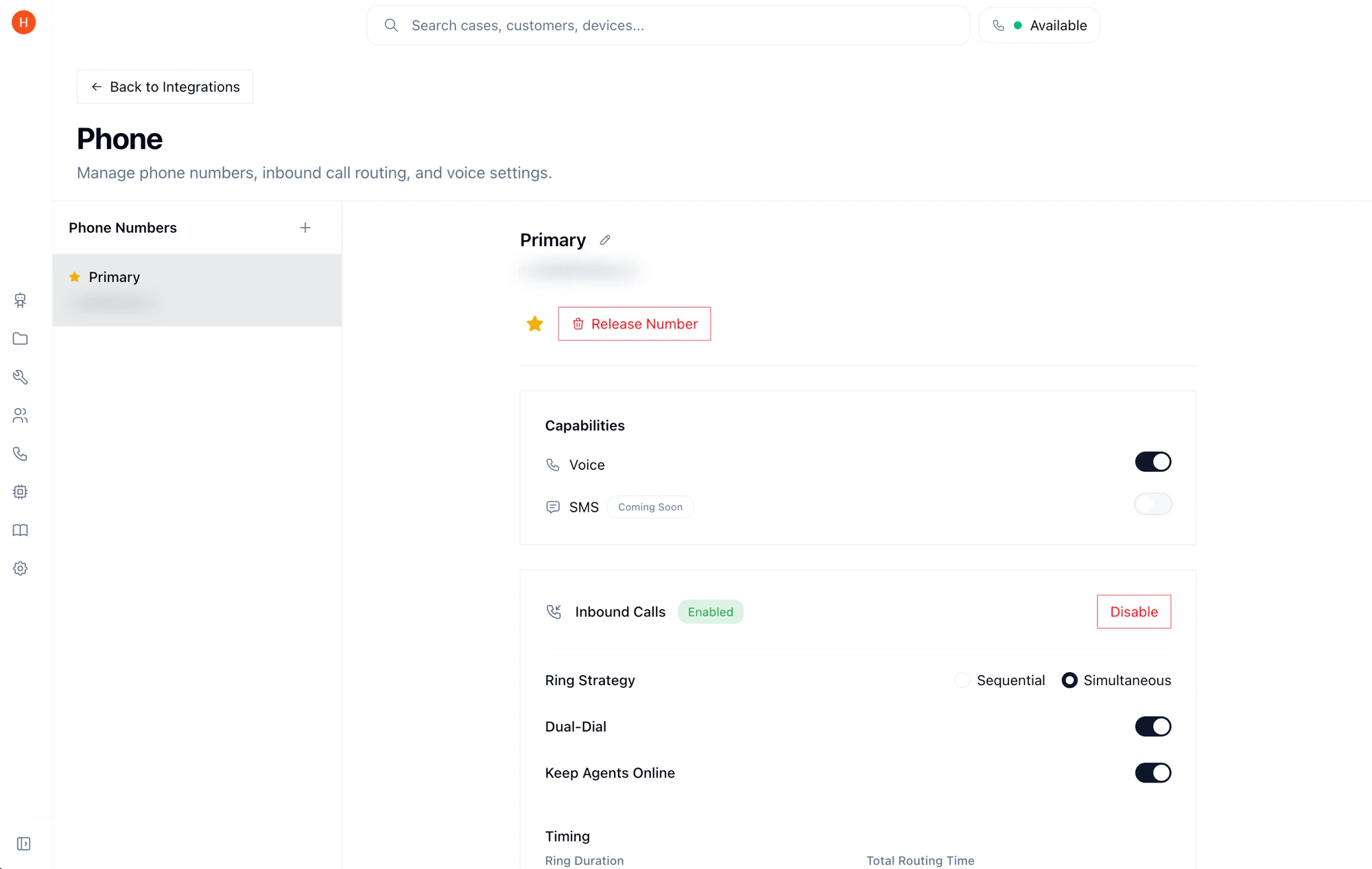 When a call comes in, agents see a popup in the dashboard with options to accept, dismiss, or forward to their cell.
 ## Setup
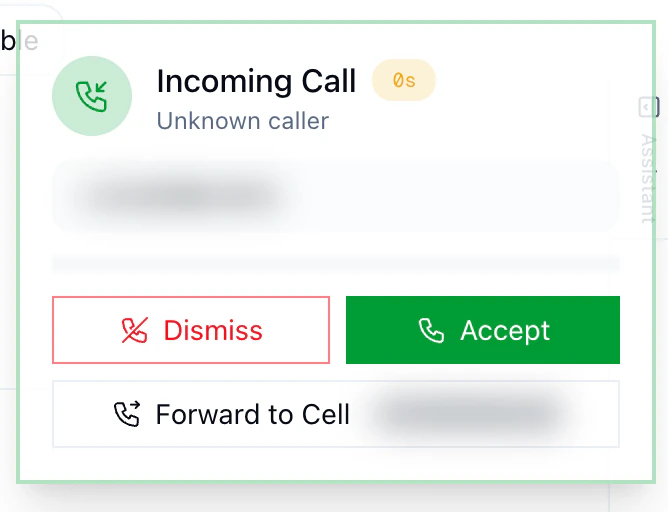
Navigate to **Settings** > **Integrations** > **Phone** and provision a new phone number. Select your desired country and area code, then confirm.
## Setup
Navigate to **Settings** > **Integrations** > **Phone** and provision a new phone number. Select your desired country and area code, then confirm.
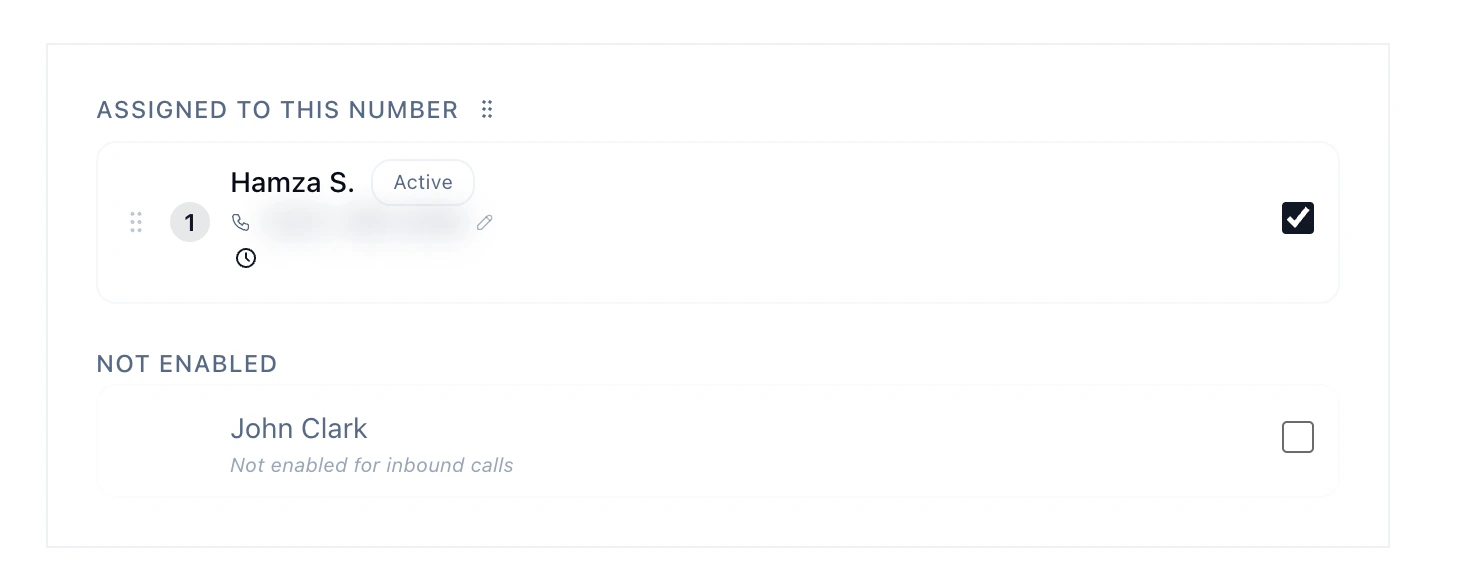
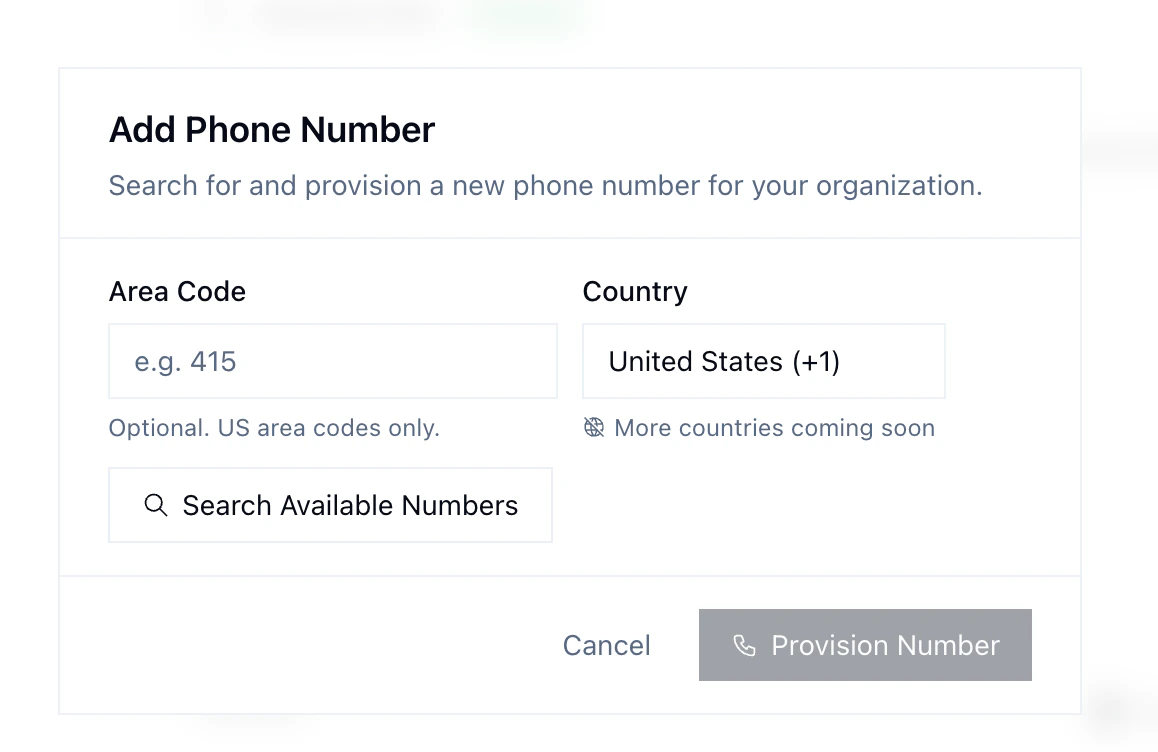 Set up how incoming calls are handled:
* **Agent call priority** — define the order in which agents receive incoming calls.
* **Ring strategy** — **sequential** rings agents one at a time in priority order; **simultaneous** rings all available agents at once, first to answer gets the call.
* **Voicemail** — configure voicemail for when no agents are available.
Set up how incoming calls are handled:
* **Agent call priority** — define the order in which agents receive incoming calls.
* **Ring strategy** — **sequential** rings agents one at a time in priority order; **simultaneous** rings all available agents at once, first to answer gets the call.
* **Voicemail** — configure voicemail for when no agents are available.
 ## Agent Availability
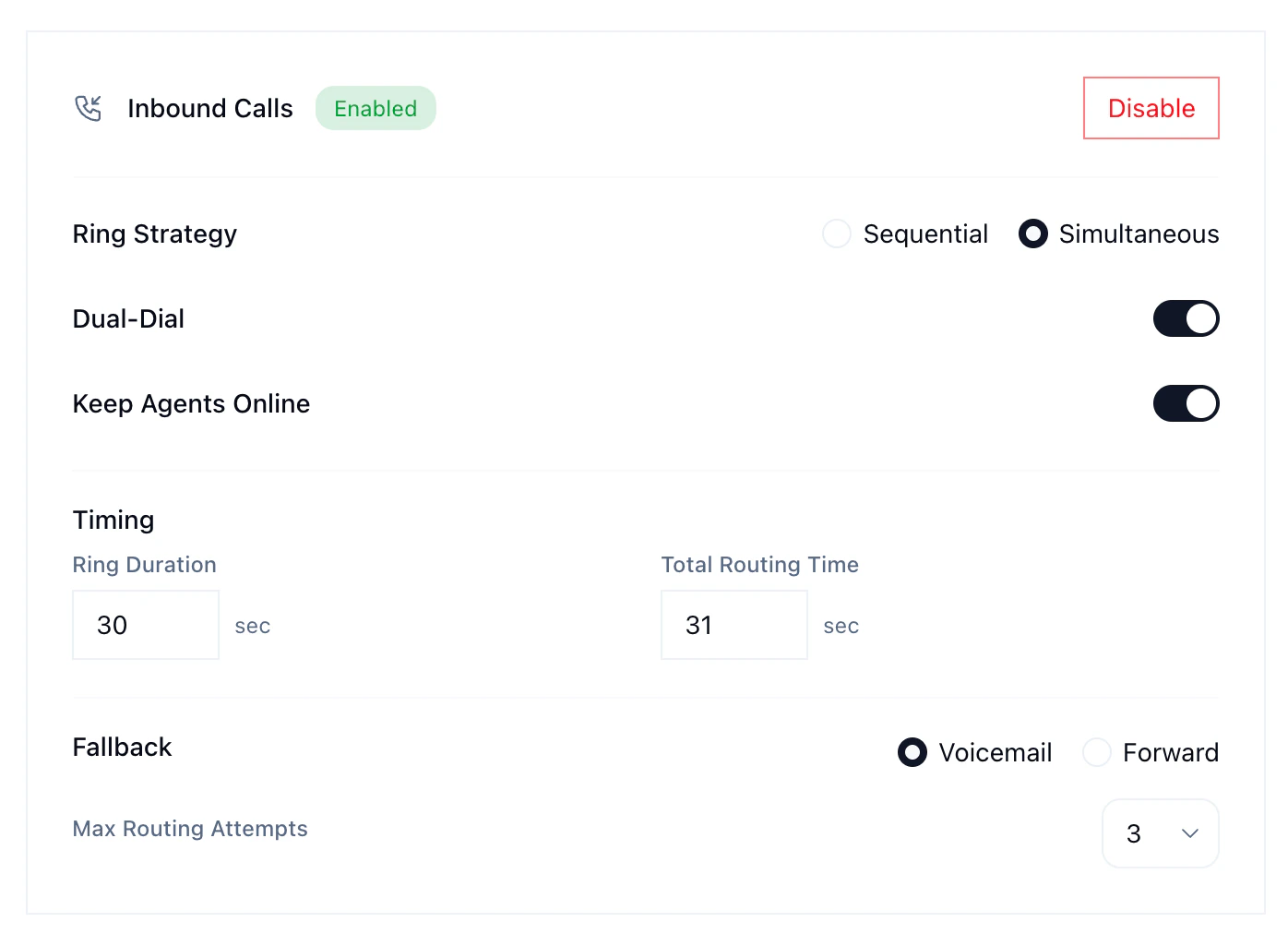
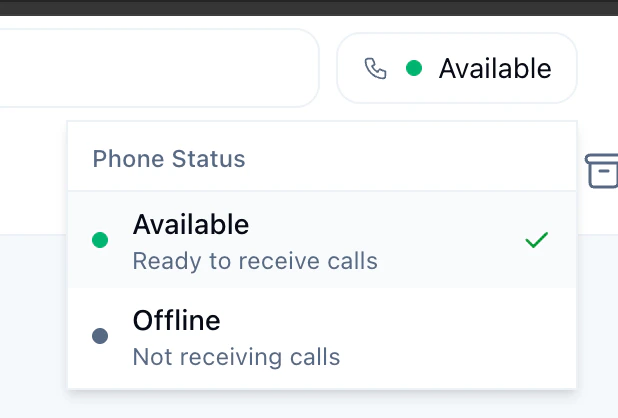
After being assigned to a phone number, agents must set themselves to **Available** in the dashboard to start receiving calls. The phone status toggle is in the top-right corner.
## Agent Availability
After being assigned to a phone number, agents must set themselves to **Available** in the dashboard to start receiving calls. The phone status toggle is in the top-right corner.
 ## Dual-Dial
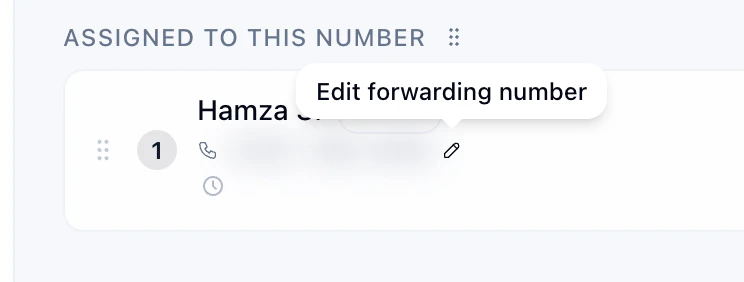
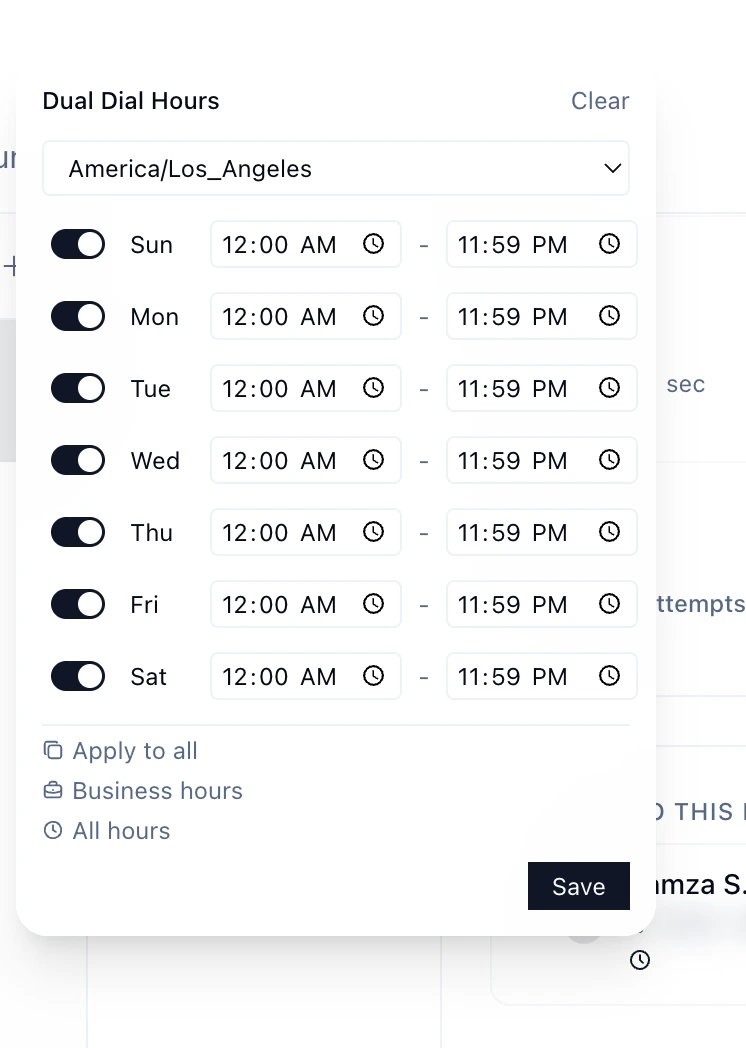
When enabled, incoming calls ring the agent's personal phone alongside their browser. The agent presses a key to confirm before being connected. This lets your team take calls from their cell when they're away from the dashboard. Each agent configures their own phone number in their profile.
## Dual-Dial
When enabled, incoming calls ring the agent's personal phone alongside their browser. The agent presses a key to confirm before being connected. This lets your team take calls from their cell when they're away from the dashboard. Each agent configures their own phone number in their profile.
 ## Business Hours
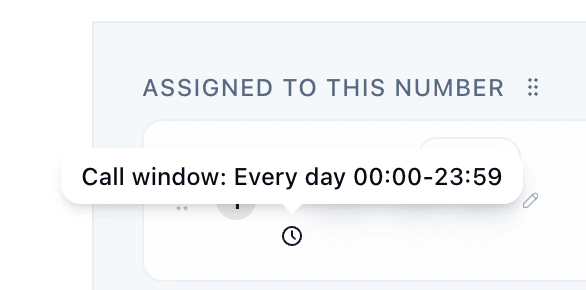
Each agent has a configurable call window that controls when they can receive calls. You can set:
* **Timezone** — the agent's local timezone
* **Per-day schedule** — enable/disable specific days with custom start and end times
* Presets available: "Business hours" (Mon–Fri 9–5) or "All hours"
When a call comes in and all agents are outside their call windows, the call falls through to your configured fallback — either **voicemail** or **call forwarding** to backup numbers.
## Business Hours
Each agent has a configurable call window that controls when they can receive calls. You can set:
* **Timezone** — the agent's local timezone
* **Per-day schedule** — enable/disable specific days with custom start and end times
* Presets available: "Business hours" (Mon–Fri 9–5) or "All hours"
When a call comes in and all agents are outside their call windows, the call falls through to your configured fallback — either **voicemail** or **call forwarding** to backup numbers.
 ## Voice Recording
All calls are automatically recorded and linked to the corresponding support case. The AI agent can generate call summaries and follow-up actions from recordings.
## Voice Recording
All calls are automatically recorded and linked to the corresponding support case. The AI agent can generate call summaries and follow-up actions from recordings.