> ## Documentation Index
> Fetch the complete documentation index at: https://docs.telemetron.ai/llms.txt
> Use this file to discover all available pages before exploring further.
# Shopify
> Connect your Shopify store to sync orders, products, and customer data
## How It Works
After connecting, Telemetron syncs your Shopify data including orders, products, and customer records. The AI agent can:
* **Look up orders** by order number, email, or customer name
* **Search products** to answer questions about availability, specs, and pricing
* **Access customer data** to provide personalized, contextual support
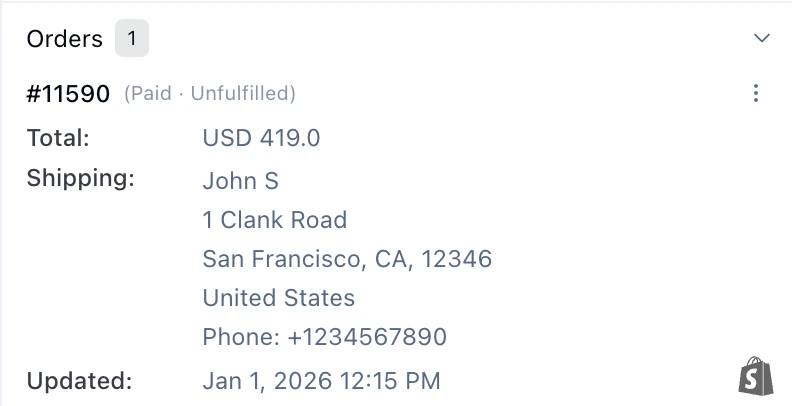
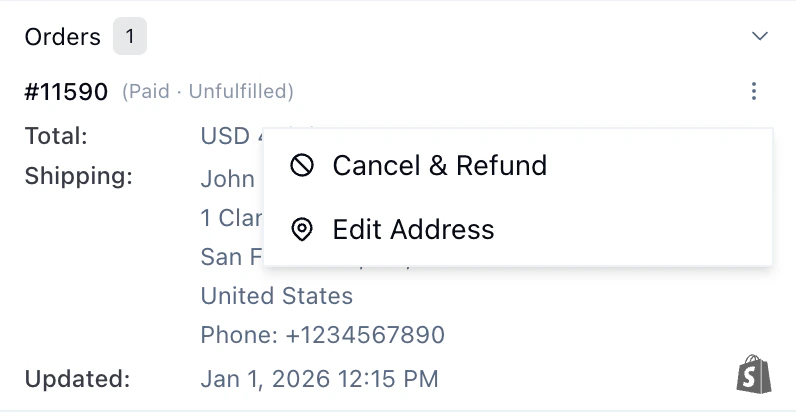
Orders appear in the case sidebar. Click the three dots on an order to cancel/refund or edit the shipping address.
 ## Overview
Integrate your Shopify store with Telemetron to automatically sync orders, products, and customer data. Once connected, the AI agent can look up order details, product information, and provide contextual support to your customers.
## Prerequisites
* An active Shopify store
* Admin access to your Shopify account
* A Telemetron account with admin permissions
## Setup
Install the [Telemetron AI app](https://apps.shopify.com/telemetron-ai) from the Shopify App Store.
In your Shopify Admin, go to **Apps > Telemetron AI**.
Copy the secret code displayed on the Telemetron app page in Shopify.
In Telemetron, go to **Settings > Integrations > Shopify**.
Paste the secret code and click **Complete Sync**.
## Configuration
Once connected, the integration page shows **"Shopify is connected"**. You can manage the integration in your Shopify Admin under **Apps > Telemetron AI**.
## Troubleshooting
| Issue | Solution |
| --------------------------- | ---------------------------------------------------------------------------------------------------------------------- |
| Secret code is not accepted | Ensure you are copying the code from the Telemetron app page in Shopify Admin, not from the Shopify App Store listing. |
| Data not syncing | Verify the app is still installed in Shopify Admin under **Apps > Telemetron AI**. Try disconnecting and reconnecting. |
| Missing orders or products | Initial sync may take a few minutes. If data is still missing after 10 minutes, contact support. |
## Overview
Integrate your Shopify store with Telemetron to automatically sync orders, products, and customer data. Once connected, the AI agent can look up order details, product information, and provide contextual support to your customers.
## Prerequisites
* An active Shopify store
* Admin access to your Shopify account
* A Telemetron account with admin permissions
## Setup
Install the [Telemetron AI app](https://apps.shopify.com/telemetron-ai) from the Shopify App Store.
In your Shopify Admin, go to **Apps > Telemetron AI**.
Copy the secret code displayed on the Telemetron app page in Shopify.
In Telemetron, go to **Settings > Integrations > Shopify**.
Paste the secret code and click **Complete Sync**.
## Configuration
Once connected, the integration page shows **"Shopify is connected"**. You can manage the integration in your Shopify Admin under **Apps > Telemetron AI**.
## Troubleshooting
| Issue | Solution |
| --------------------------- | ---------------------------------------------------------------------------------------------------------------------- |
| Secret code is not accepted | Ensure you are copying the code from the Telemetron app page in Shopify Admin, not from the Shopify App Store listing. |
| Data not syncing | Verify the app is still installed in Shopify Admin under **Apps > Telemetron AI**. Try disconnecting and reconnecting. |
| Missing orders or products | Initial sync may take a few minutes. If data is still missing after 10 minutes, contact support. |