

Every customer interaction in Telemetron is tracked as a case. Each case has a channel it came from, a status tracking where it is in the lifecycle, an assignment to a team member, and a category for organization and filtering.
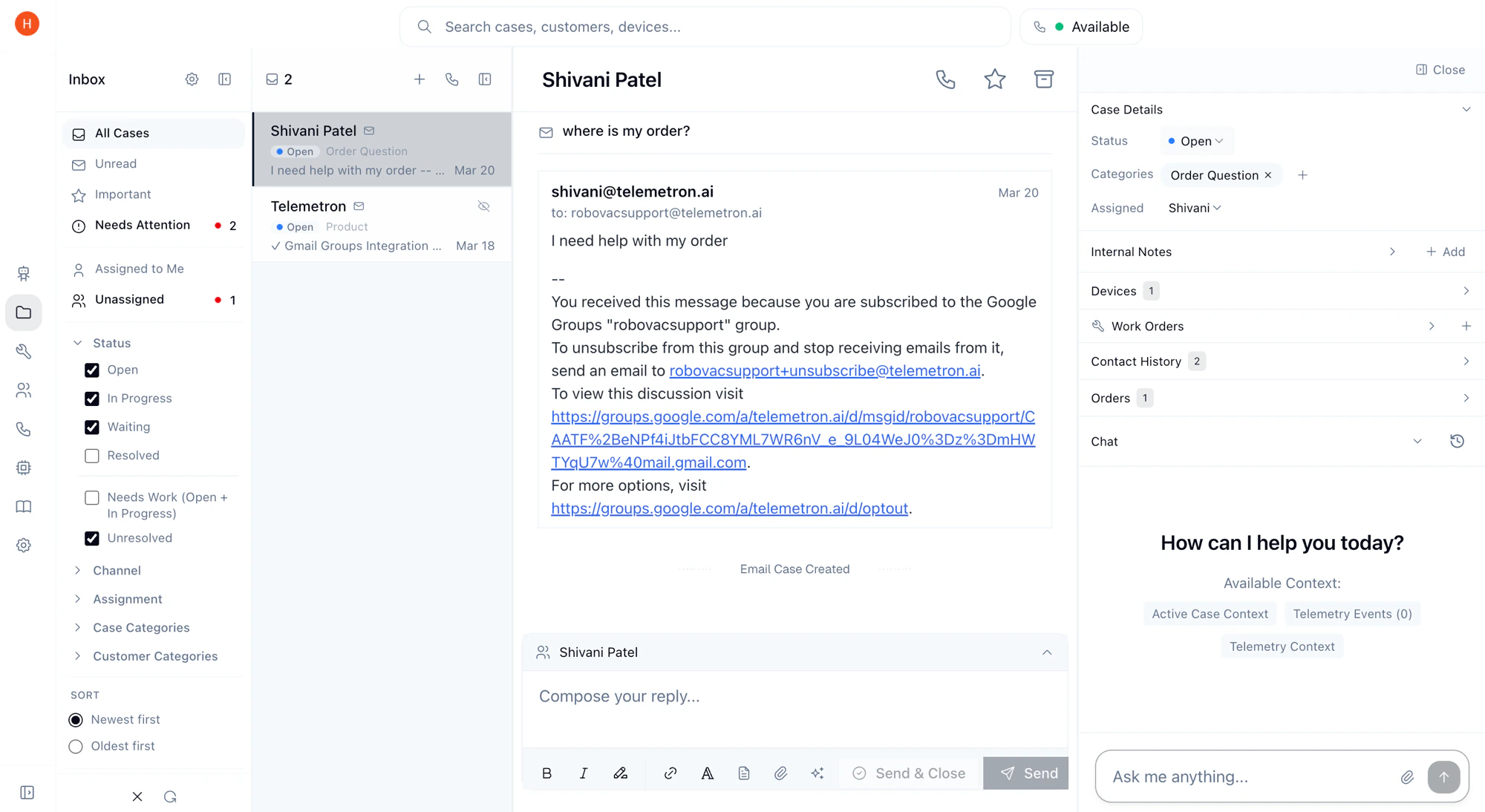
Statuses
Where a case is in its lifecycle.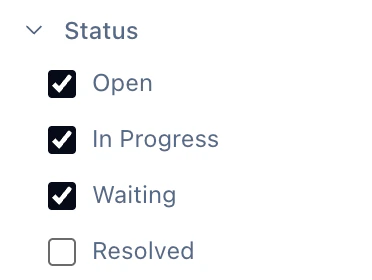
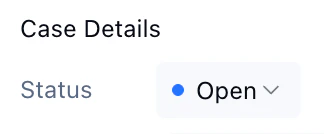
Channels
Where cases come from. Each channel automatically creates and routes cases.
You can filter cases by channel in the inbox sidebar.
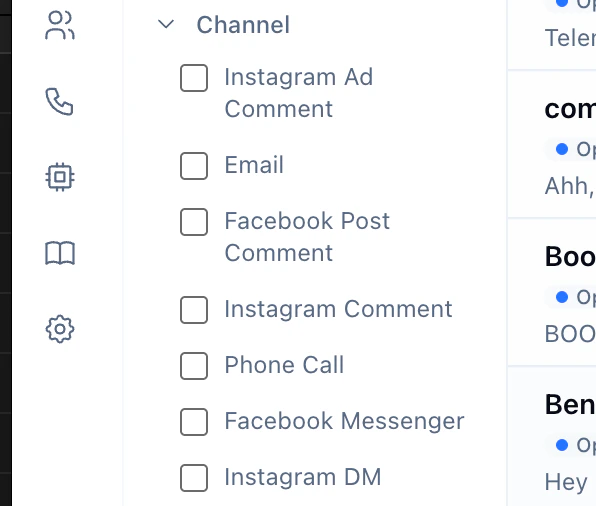
Assignment
Which team member owns a case. Cases can be assigned manually from the dashboard or routed automatically based on routing rules.Categories
Labels for organizing and filtering cases. Categories are configured per-organization and can be assigned manually or by the AI agent. See Categories & Routing Rules for details.Notifications
How your team stays informed. New cases and updates notify your team via Slack — no need to watch the dashboard. Notifications fire on new cases, customer replies, and status changes.Inbox Quick Filters
The inbox sidebar provides quick filters to surface the cases that need your attention.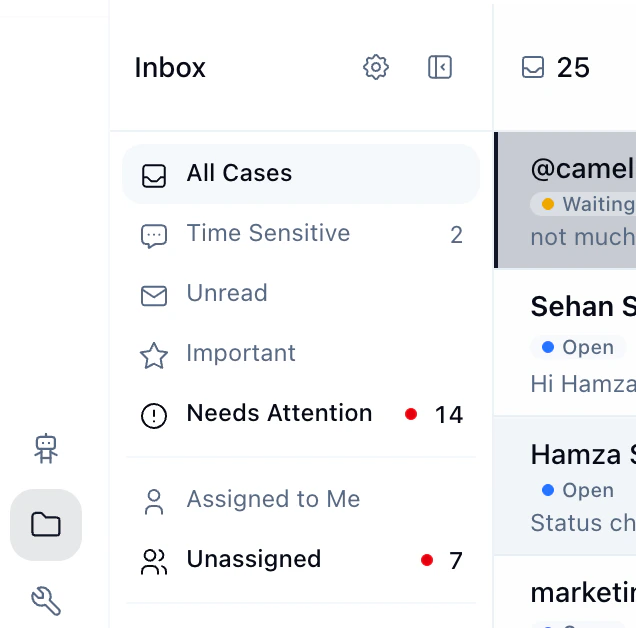
Auto-Resolve & Spam
Categories can be marked as auto-resolve. When a case is created with an auto-resolve category, it’s immediately closed and won’t trigger a Slack notification. This is useful for handling spam or irrelevant cases — the AI agent categorizes incoming cases automatically, so noise gets filtered without manual effort. See Categories & Routing Rules for how to configure this.Linked Data
The context attached to each case. Each case links to:- Customer — the end user who initiated contact
- Device — the hardware device related to the issue
- Thread — the underlying conversation (email thread, DM, etc.)